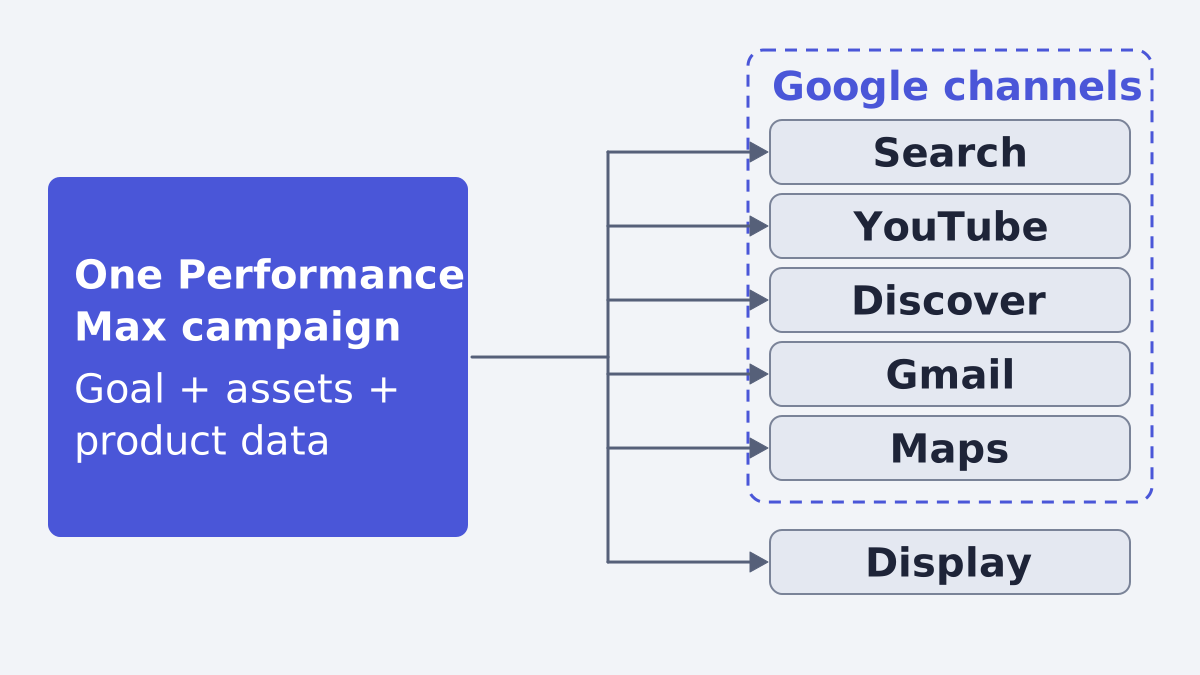
Performance Max is a goal-based Google Ads campaign type that lets you reach all of Google's ad inventory (Search, YouTube, Display, Discover, Gmail and Maps) from a single campaign (Google Ads Help). A brand that sells products sets one up by fixing its product data in Merchant Center, choosing the conversion goals, linking the feed, and building asset groups with the text, images and videos Google's AI mixes into ads.
What Performance Max is
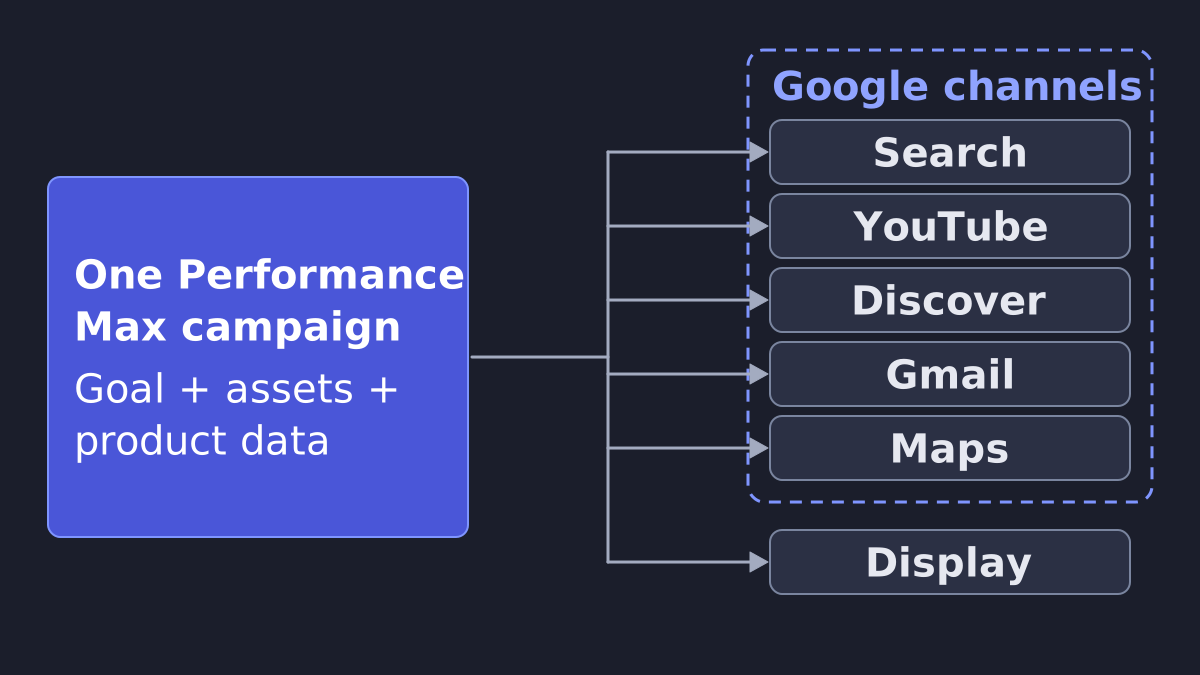
You give Google your goal, your creative assets and, for a shop, your product data. Google combines them "with the power of Google AI" and serves across all available inventory, bidding in real-time auctions on your conversion probability (Google Ads Help).
Google says it can complement keyword-based Search campaigns and find conversions beyond Search. Search, YouTube, Maps, Gmail and Discover are grouped as "Google channels" to keep the cross-channel AI optimization together. Search partners and the Google Display Network can have their own priority tiers (Google Ads Help).
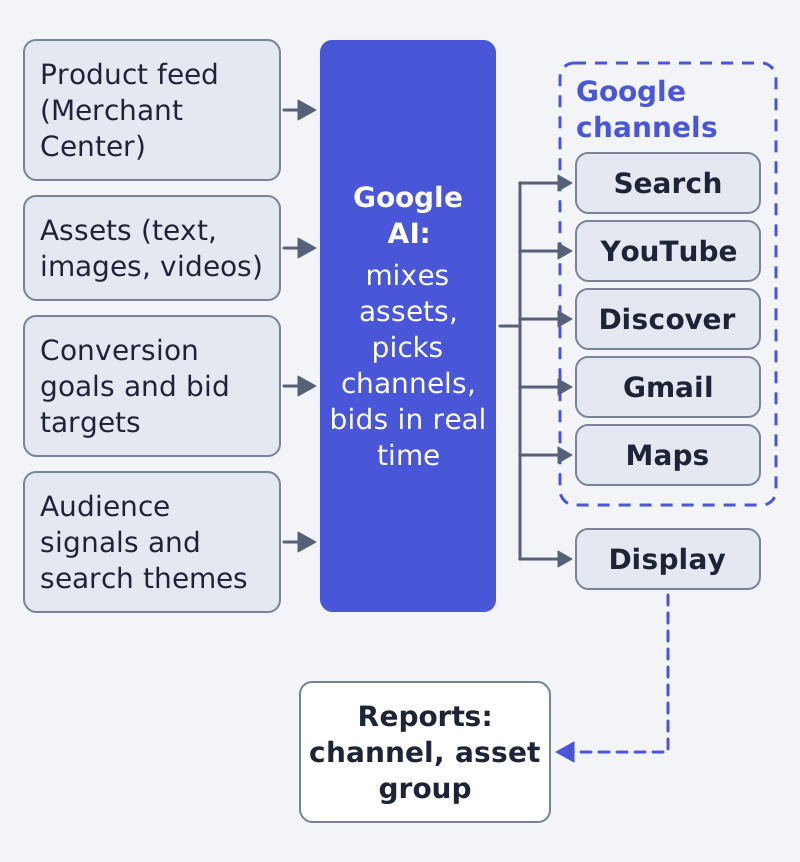
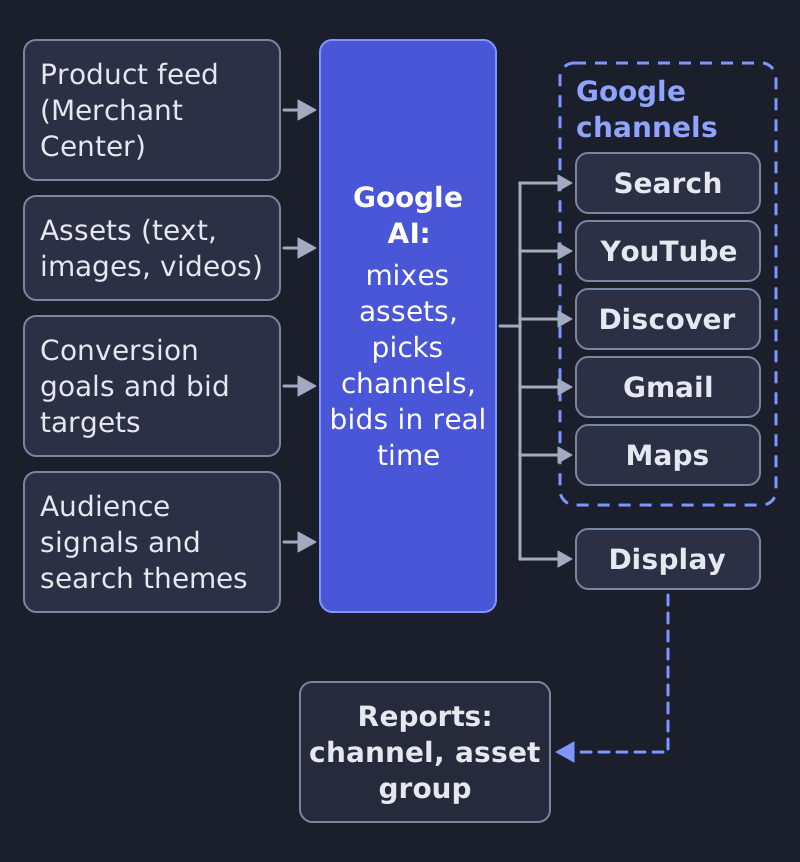
You do not pick channels one by one. Google's channel report says you "can't directly control budget allocation per channel", though asset quality, audience signals and conversion setup can influence it (Google Ads Help: channel performance). One more rule to know: a Search campaign with an exact match keyword is prioritized to serve over Performance Max (Google Ads Help).
Before you start: the feed and the goals
Product data. A campaign that uses product data needs a linked Merchant Center account and an objective such as Sales, Leads or Website traffic (Merchant Center Help: data sources in Performance Max). Data sources are optional; without one the campaign builds ads from the assets you upload. After the campaign is created you cannot add, change or remove a data source, so decide before you press create (same page).
Merchant Center requires these attributes for every product (Merchant Center Help: product data specification):
| Attribute | Rule |
|---|---|
| id | Unique per product, 50 characters at most |
| title | 150 characters at most |
| description | 5,000 characters at most |
| link | Landing page, starting with http or https |
| image_link | Main image URL that Googlebot can crawl |
| availability | in_stock, out_of_stock, preorder or backorder |
| price | Number plus ISO 4217 currency, such as 15.00 USD |
| brand | Required for new products, with exceptions such as books and music |
Google also says that if you submit a wrong GTIN, the product is disapproved, so send one only if you are sure it is correct (same page). To check your own feed for these errors first, use our feed inspector and read Google Merchant Center feed errors.
Conversion goals. Google tells you to make sure conversion tracking is set up and the right conversion actions are added as goals; a new setup can take 24 to 48 hours to show (Google Ads Help: create a campaign). A campaign bids only toward goals it uses, and an action must be Primary to count for bidding (Google Ads Help: conversion goals). Wrong settings here can stop Smart Bidding from optimizing well (same page).
How to set it up, step by step
- Fix the product data in Merchant Center against the table above.
- Set up conversion tracking and mark the actions that matter as Primary (conversion tracking, conversion goals).
- Create the campaign. Performance Max appears when your objective is Sales, Leads or Local store visits and promotions. If it does not, choose to create a campaign without a goal's guidance (Google Ads Help).
- Link the Merchant Center data source in the setup, and pick the feed by feed label or country of sale if you have several (Merchant Center Help).
- Choose bidding. Maximize Conversions suits a focus on sales volume or a tight budget. Maximize conversion value suits a focus on revenue and works best with solid value tracking. You can add a target CPA or target ROAS (Google Ads Help: getting started). Do not set those targets too tight, because that can cap reach (Google Ads Help).
- Set the budget. Google shows up to three daily levels, and the lowest is its minimum recommended budget (Google Ads Help).
- Build the asset groups and listing groups (the next two sections).
- Set the controls: brand exclusions, Final URL expansion, search themes, audience signals.
- Wait for review. Ads are checked for safety and appropriateness, which takes a few days (getting started); the create-campaign page says one to two days. The campaign may show a "Learning" status for up to 7 days after a major change (getting started).
What goes into an asset group
An asset group is a set of creatives built around a theme or target audience. Google's AI mixes and matches them into ads, and a campaign can have several groups (Google Ads Help: asset groups). For a shop, base the groups on product sections or categories of your site (same page).
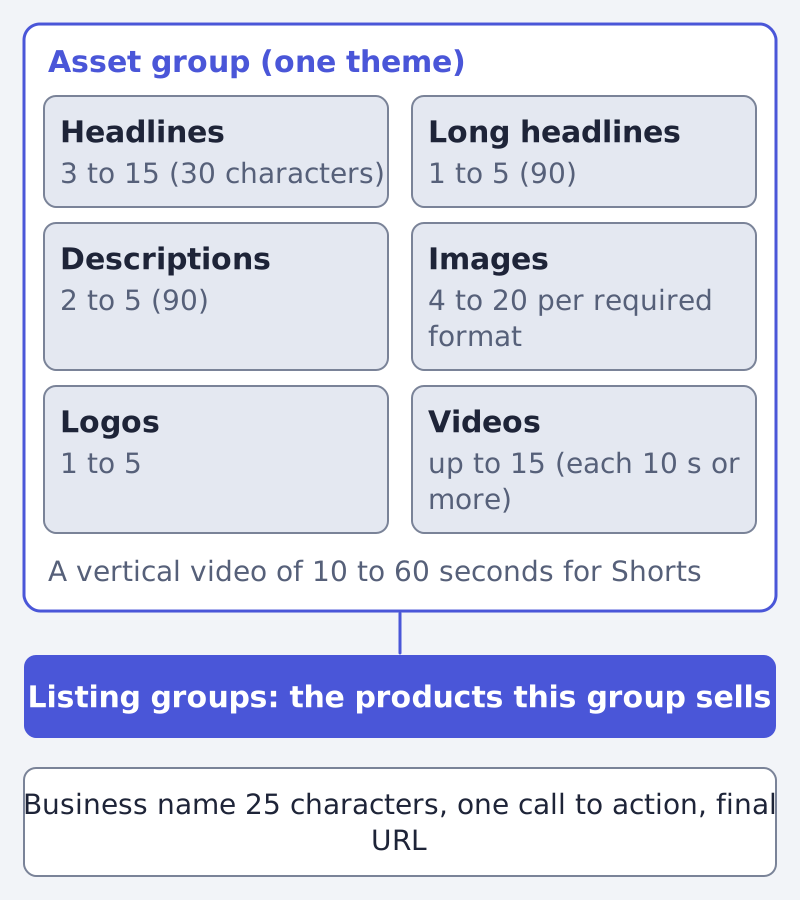
Text limits, from Google Ads Help: text assets:
| Text asset | Count | Characters |
|---|---|---|
| Headlines | 3 to 15 (11 or more recommended) | 30 each, at least one of 15 or fewer |
| Long headlines | 1 to 5 (2 or more recommended) | 90 each |
| Descriptions | 2 to 5 (4 or more recommended) | 90 each |
| Business name | required | 25 |
Image and logo sizes, from Google Ads Help: image assets:
| Format | Count | Recommended | Minimum |
|---|---|---|---|
| Landscape 1.91:1 | 4 to 20 | 1200 x 628 | 600 x 314 |
| Square 1:1 | 4 to 20 | 1200 x 1200 | 300 x 300 |
| Vertical 4:5 | 2 to 20 (optional) | 960 x 1200 | 480 x 600 |
| Square logo 1:1 | 1 to 5 | 1200 x 1200 | 128 x 128 |
| Horizontal logo 4:1 | 1 to 5 (optional) | 1200 x 300 | 512 x 128 |
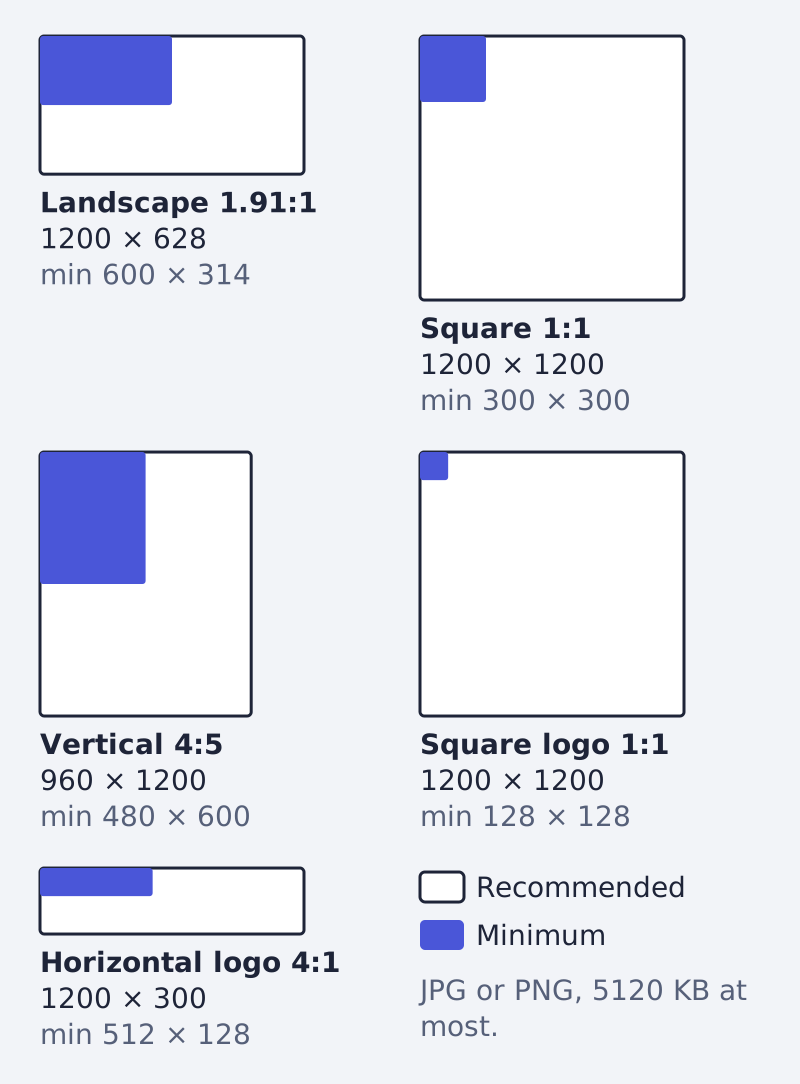
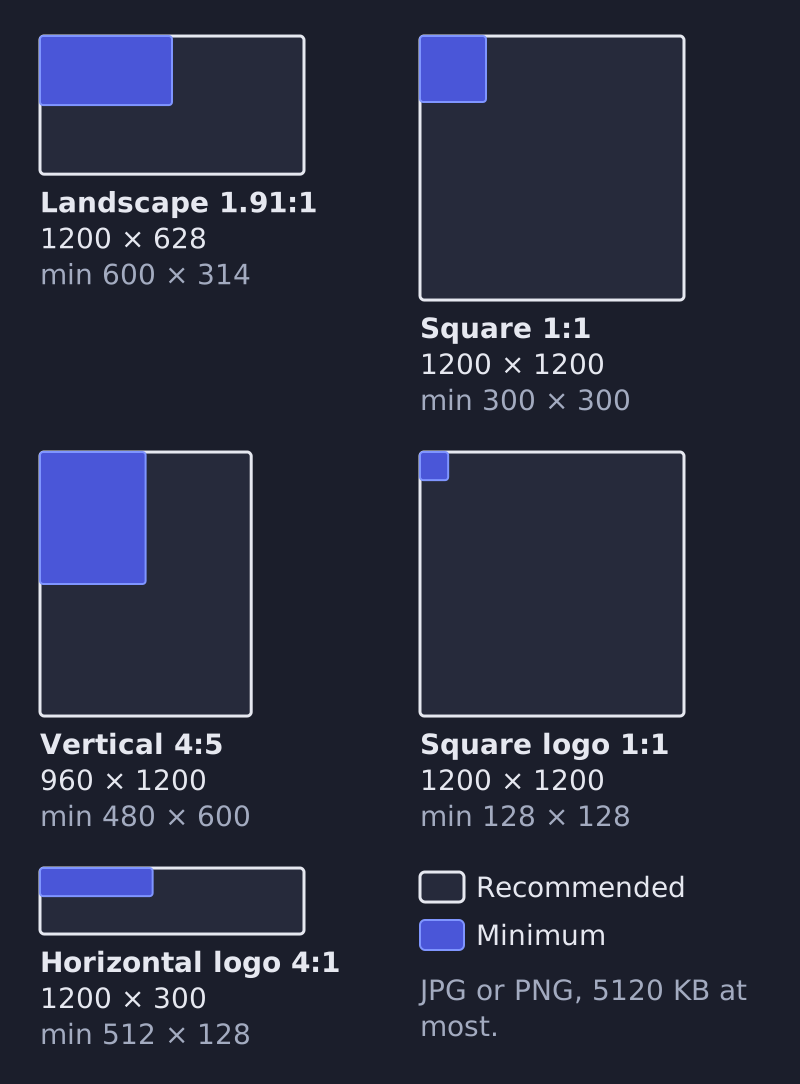
Images must be JPG or PNG, at most 5120 KB, and key content should sit in the central 80% (Google Ads Help: asset groups).
Videos come in 16:9, 9:16 or 1:1, each at least 10 seconds long, up to 15 in all. To be eligible for YouTube Shorts, include at least one vertical video of 10 to 60 seconds. Without a video, Google may generate a video from your assets, and with Merchant Center from the text and images of your feed (Google Ads Help: video assets). For auto-generated videos, Google advises product filters so the products shown match your landing page (Google Ads Help). Use the Ad strength indicator to see whether a group has enough assets (asset groups).
Listing groups and the controls
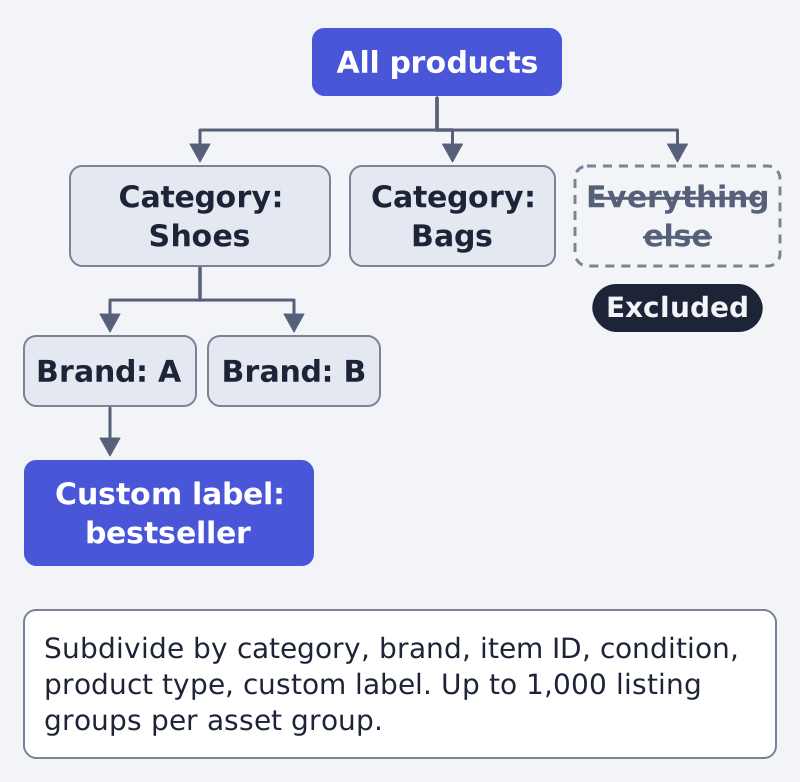
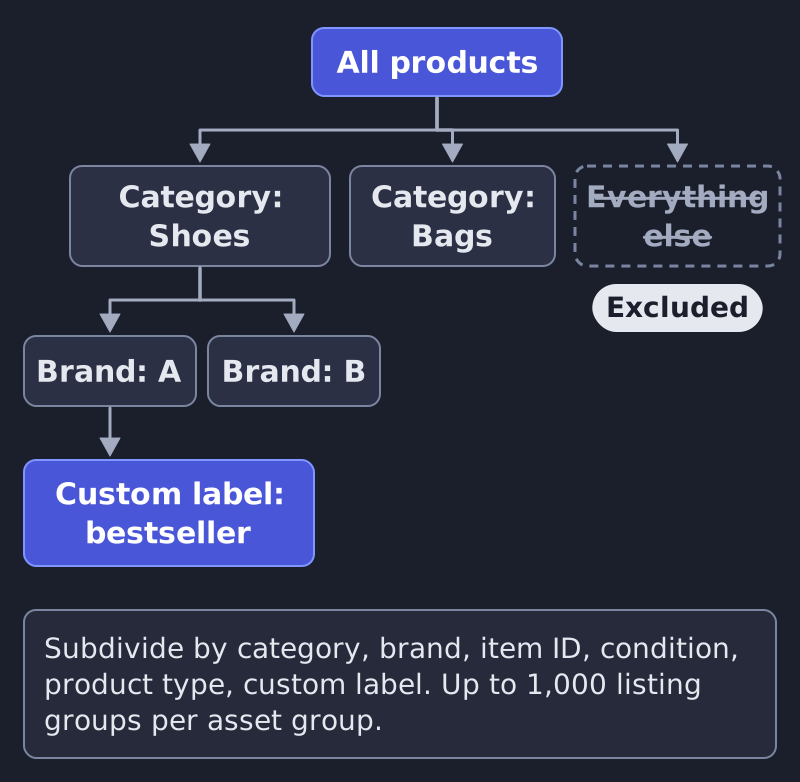
Listing groups sit inside an asset group and organize your products by the attributes you set in Merchant Center. You subdivide from a single "All products" group, and you can exclude any branch (Google Ads Help: listing groups).
| Subdivide by | Note from Google |
|---|---|
| Category | Only in listed countries, Turkey among them |
| Brand | The manufacturer name |
| Item ID | Your own product identifier |
| Condition | New, used or refurbished |
| Product type | Can be subdivided up to 5 times |
| Custom labels | Up to 5 labels you define in the feed |
Each asset group can have up to 1,000 listing groups, but Google says more than 1,000 is not a best practice and suggests custom labels instead (same page).
The controls. Google's overview of search targeting and controls links five:
| Control | What Google says |
|---|---|
| Brand exclusions | Block ads on queries with your brand name, misspellings and subsidiary brands; apply to Search and Shopping, and Shopping can keep serving if you allow it |
| Negative keywords | Block matching queries; a restrictive control, so use only for brand safety or clearly irrelevant terms |
| Search themes | Words that describe what customers may search; up to 50 recommended; avoid duplicates |
| Final URL expansion | Swaps your URL for a more relevant page of your site; Google recommends it on; URL exclusions work only when it is on |
| Keywordless targeting | The default approach: the AI decides from your site, campaign and feed data |
Google adds that you remain responsible for reviewing the landing page content Final URL expansion may pick (Google Ads Help). Audience signals let you "share customer intent preferences to guide learning" (Google Ads Help). Google asks you to keep them broad and not overly restrictive, and to keep more than 100 active users in a remarketing list over the last 30 days (Google Ads Help: create a campaign).
Reading the reports, and the creative upkeep
Google lists seven reporting options, among them asset-level metrics, asset group reporting, channel performance and placement reports (Google Ads Help).
- Asset group report: shows metrics and the top six combinations for text, image and video. Conversions are not split across the parts of an ad, so asset numbers will not add up to the campaign total, and Google does not recommend removing asset groups on CPA or ROAS alone (asset group reporting).
- Channel performance: shows how each channel contributes. A channel with no delivery and no flagged issue likely means the campaign bids where returns are higher. Allow one to two weeks to stabilize after big changes (channel performance).
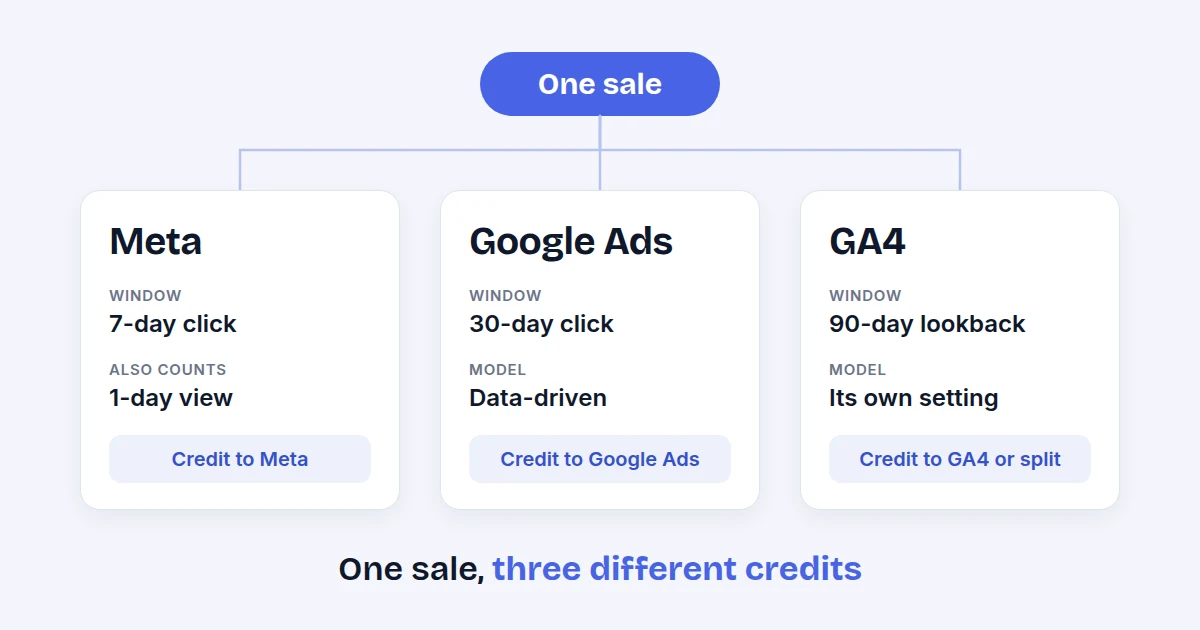
On timing, Google says automated bidding campaigns typically take 1 to 2 weeks to optimize, sometimes up to 6 (Google Ads Help). If your numbers disagree with GA4 or Meta, that is normal; see why Meta, Google Ads and GA4 report different numbers.
The assets are the part you keep feeding: Google advises adding as many as possible, up to 15 headlines and 5 descriptions (asset groups). We run an AI system, Framepx, that turns a product feed into ads for every channel, which is one way to keep that supply going; see how it works and pricing.
Frequently asked questions
Do I need Merchant Center?
Only for product data. Data sources are optional, and without one the campaign builds ads from the assets you upload (Merchant Center Help).
Can I choose which channels it uses?
Not directly. Google says you cannot directly control budget allocation per channel (channel performance).
How many assets are required?
Google's pages are not fully consistent. One page says no assets are required to launch, while its tables mark several text and image assets as required (asset groups). Follow the minimums in the tables above.
How long until it works?
Google gives a "Learning" status of up to 7 days and a typical optimization time of 1 to 2 weeks, sometimes up to 6 (getting started, create a campaign).
Written by
Framepx team, Editorial team
The Framepx editorial team writes for brands, marketers and agencies about ad platforms, measurement, creative and product feeds.