Google lists 14 recommended events for online sales in GA4, from view_item_list to refund (Analytics Help: recommended events). A store that wants to see its buying path needs at least view_item, add_to_cart, begin_checkout and purchase, each sent with currency, value and an items array, and checked in DebugView before you trust a single report.
What the recommended events are
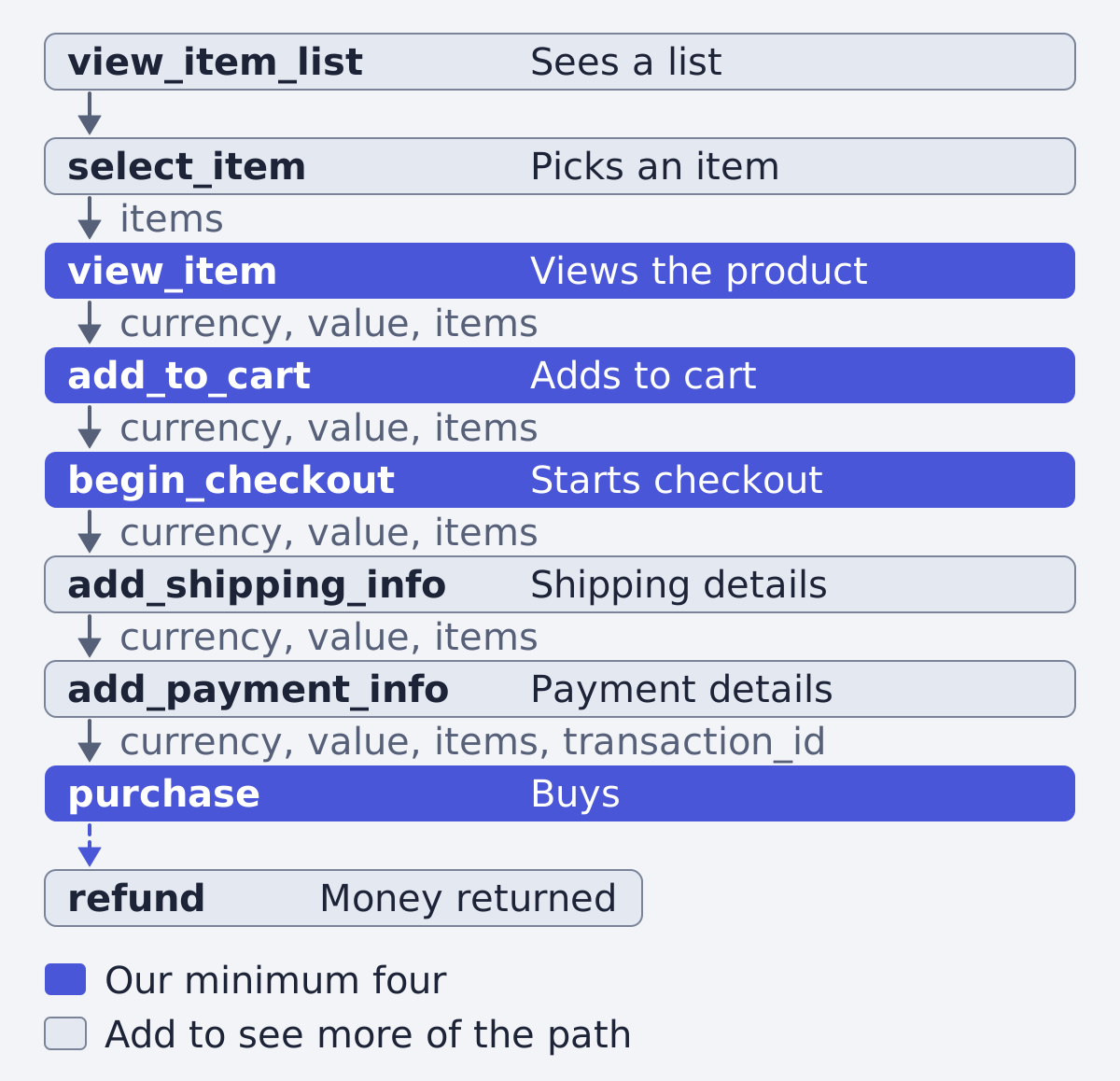
Recommended events are ones Google names for you, with their parameters, so your reports can use them. The online sales group on Google's list holds 14 events, among them view_item_list, select_item, view_item, add_to_cart, view_cart, begin_checkout, add_shipping_info, add_payment_info, purchase and refund. The rest are add_to_wishlist, remove_from_cart, view_promotion and select_promotion.
Google's measure ecommerce guide walks through them in this order: item lists, item details, cart and wishlist, checkout, purchases and refunds, and promotions. That is the order of the buying path, so we use it here.
Google does not say which of the 14 are optional. The four we call the minimum, view_item, add_to_cart, begin_checkout and purchase, are our reading: they are the points where a shopper looks, intends, starts paying and pays. Add the others when you want to see where people drop out between them, or in lists, promotions and refunds.
The events in the order of the buying path
| Event | When it fires | Key parameters | Source |
|---|---|---|---|
view_item_list |
A user views a list of items or offerings | currency, items, item_list_id, item_list_name |
Reference |
select_item |
A user selects an item from a list of items or offerings | items, item_list_id, item_list_name |
Reference |
view_item |
A user views an item | currency, value, items |
Reference |
add_to_cart |
A user adds items to the shopping cart | currency, value, items |
Reference |
begin_checkout |
A user begins checkout | currency, value, items, optional coupon |
Reference |
add_shipping_info |
A user submits their shipping information during checkout | currency, value, items, optional shipping_tier |
Reference |
add_payment_info |
A user submits their payment information during checkout | currency, value, items, optional payment_type |
Reference |
purchase |
A user completes a purchase | transaction_id, currency, value, items, optional shipping, tax, coupon, customer_type |
Reference |
refund |
A user receives a refund | transaction_id, currency, value, optional items |
Reference |
The "when it fires" column is Google's wording, lightly shortened, from the recommended events page; the parameters come from the event reference. On view_item_list and select_item, items is the one required parameter besides the conditional currency on the list event; select_item lists no currency or value. On refund the reference marks items as not required but says to include it "to see item-level refund metrics in Analytics".
Two more cart events complete the picture: view_cart (a user views the shopping cart) and remove_from_cart (a user removes items from it) (recommended events).
The parameters that matter
Four parameters carry most of the weight, and the reference spells out their rules (event reference):
currency: "If you setvaluethencurrencyis required for revenue metrics to be computed accurately." Google's guide adds that you should set it at the event level when sendingvalue(measure ecommerce).value: the sum ofprice * quantityfor all items. Do not includeshippingortax.transaction_id: onpurchase, it "helps you avoid getting duplicate events for a purchase". Give every order its own.items: the products of the event. Each one needsitem_id,item_nameor both.
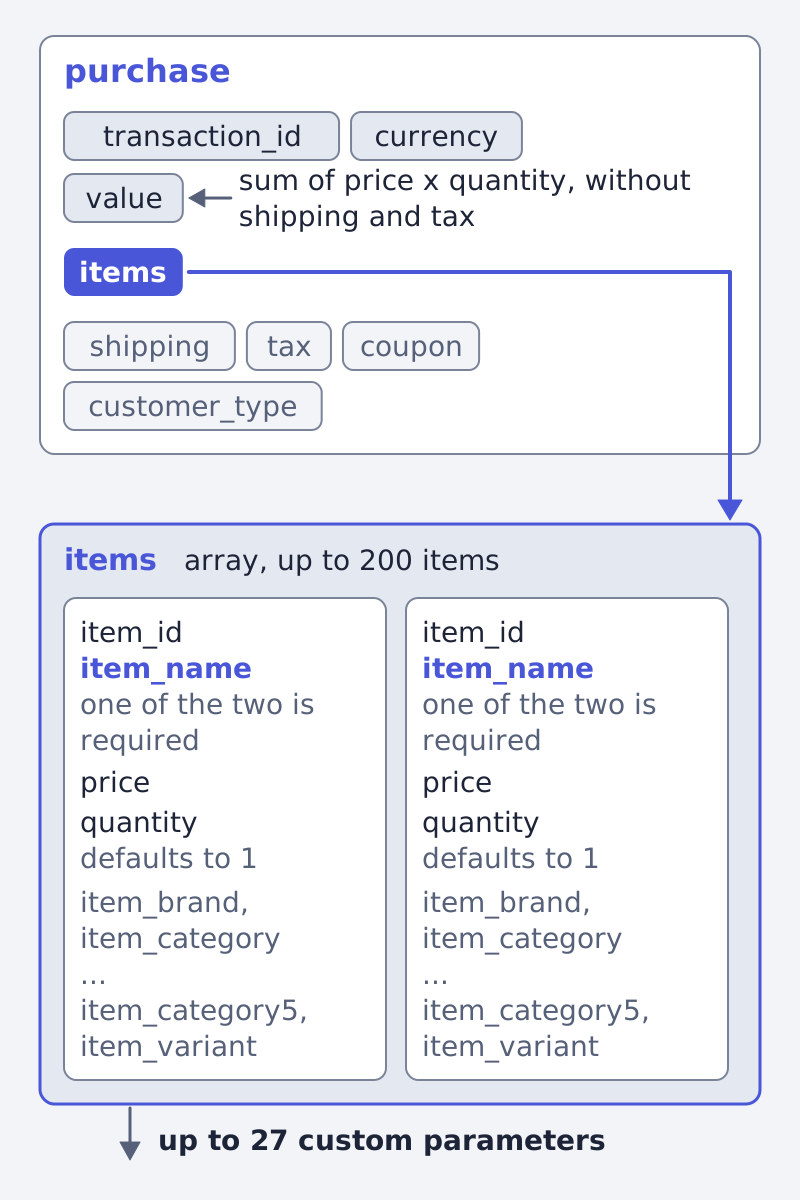
The items array is where the product detail lives. Google's guide says each item needs item_id or item_name, and recommends sending both. price and quantity are optional, and quantity defaults to 1 when you leave it out. The array holds up to 200 elements, and you can add up to 27 custom parameters on top of the standard ones, such as item brand, categories one to five, variant and list name (measure ecommerce). Google also says to send every ecommerce parameter you have data for, optional ones included.
What a purchase event looks like
Google's guide shows the purchase event under two tabs, gtag.js and Tag Manager (measure ecommerce). This is the Tag Manager version, shortened to the fields discussed above, with the page's example values: the data layer gets an event: "purchase" and an ecommerce object, after a push of ecommerce: null that clears the previous one.
dataLayer.push({ ecommerce: null });  // Clear the previous ecommerce object.
dataLayer.push({
  event: "purchase",
  ecommerce: {
    transaction_id: "T_12345",
    // Sum of (price * quantity) for all items.
    value: 72.05,
    tax: 3.60,
    shipping: 5.99,
    currency: "USD",
    coupon: "SUMMER_SALE",
    customer_type: "new",
    items: [
    {
      item_id: "SKU_12345",
      item_name: "Stan and Friends Tee",
      // brand, category and more fields as listed in the guide
      price: 10.01,
      quantity: 3
    },
    {
      item_id: "SKU_12346",
      item_name: "Google Grey Women's Tee",
      price: 21.01,
      quantity: 2
    }]
  }
});
Check the sum: 10.01 x 3 + 21.01 x 2 = 72.05, which is the value, without tax or shipping. The gtag.js tab sends the same fields in a gtag("event", "purchase", {...}) call. The names are the contract, not the way you send them.
How the events reach GA4
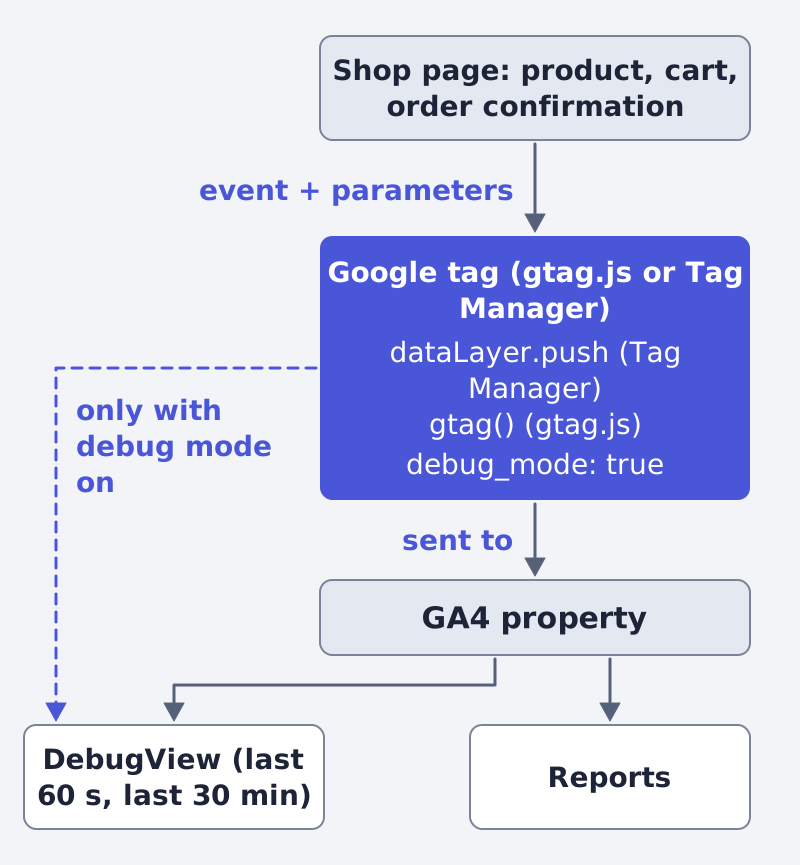
The guide lists the starting points: the Google tag is on your site, and you can reach both Analytics and the site's source code (measure ecommerce). Then the shop sends each event at the moment it happens: view_item when the product page loads, add_to_cart when the button is pressed, purchase on the order confirmation. Google's order is: lists, item details, cart, checkout, purchase.
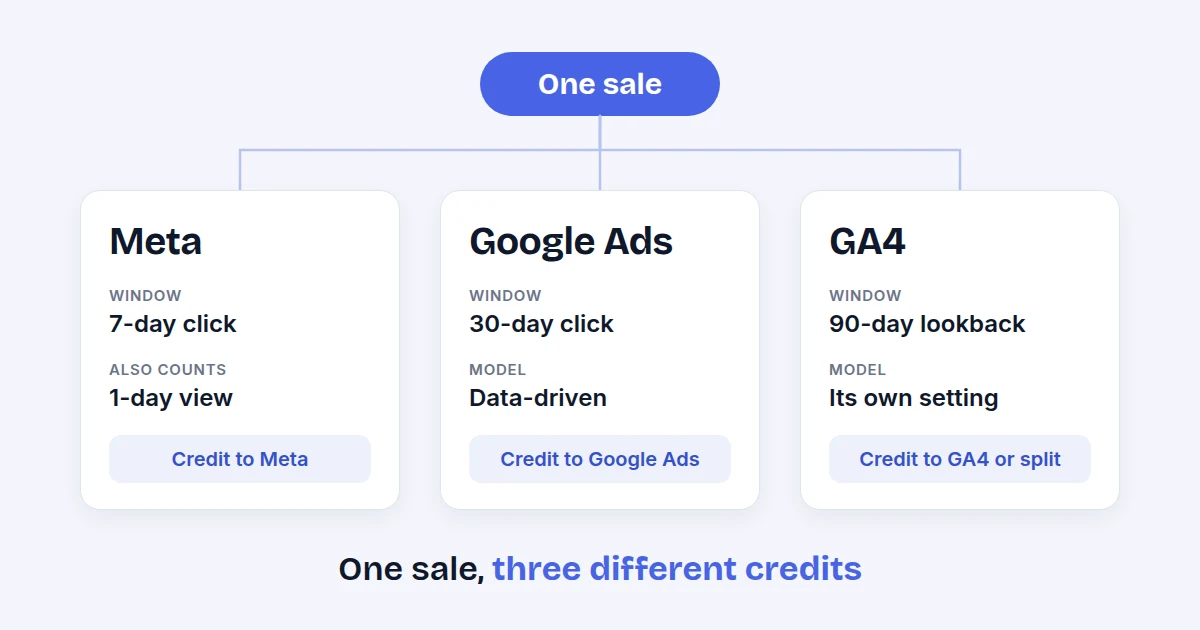
If your numbers in GA4 do not match Meta or Google Ads once this works, that is expected; see why Meta, Google Ads and GA4 report different numbers. If you run Google Ads, our guide to Performance Max covers the campaign side.
How to check the events arrive
Google's DebugView shows "the events and user properties that Analytics collects from a user in real time" (Analytics Help: DebugView). The check, step by step:
- Turn on debug mode. For yourself only, use Google Tag Assistant: it adds a parameter to your site's URL. For all users, add
debug_modeset totrueto theconfigcommand; in Tag Manager, set thedebug_modefield to true in the Google tag, or in a Google Analytics Event tag for chosen events. - Open DebugView. In Analytics go to Admin, then DebugView under "Data display".
- Walk the path yourself. Open a product, add it to the cart, start checkout and buy.
- Read the stream. The seconds stream shows events from the last 60 seconds; click an event to see its parameters. The minutes stream shows the last 30 minutes. Look for
currency,value,transaction_idand theitems.
Three limits from the same page. To switch debug mode off you must remove the parameter, because setting it to false does not disable it. Events do not show in debug mode if privacy controls on the client side hide them. And debug traffic can skew your reports, so filter out developer traffic while you test.
Frequently asked questions
Which GA4 ecommerce events do I need at minimum?
Google does not name a minimum. Our reading: view_item, add_to_cart, begin_checkout and purchase, the four points where a shopper looks, adds, starts paying and pays. Add the rest as you need to see more of the path (recommended events).
Why does purchase need a transaction_id?
Google says it helps you avoid duplicate events for a purchase (event reference).
Do I have to send currency every time?
Whenever you send value, yes. Without it the revenue metrics cannot be computed accurately (event reference).
How do I know an event reached GA4?
Watch it in DebugView with debug mode on (DebugView help). Events hidden by privacy controls will not show there.
A last word
Tracking tells you where the path leaks; the ads and product pages are the other half. We run Framepx, an AI system that turns a product feed into ads for every channel, so the creative side keeps up with what the numbers show; see how it works.
Written by
Framepx team, Editorial team
The Framepx editorial team writes for brands, marketers and agencies about ad platforms, measurement, creative and product feeds.