Segment your products by the decision you want to make about them: how much to spend, what to promote and when. Margin, sales speed and season are the three groupings that most shops can build today, and each group should get its own campaign or ad set.
Without segments, one budget is spread across every product. A best seller and a product nobody has looked at in months get treated the same. Segments let you spend on purpose.
Pick the question each segment answers
A segment is only useful if it changes what you do. Start with three questions.
- Which products earn me the most per sale? Group by margin. These are the products where a click is worth paying for.
- Which products sell fast, and which sit? Group by sales speed, using your last 30 or 60 days of orders.
- Which products are right for this month? Group by season or event: winter coats in November, gifts in December, clearance in January.
Keep the number of groups small. Three to five segments are enough to start. Ten segments with a few products each will starve every ad set of data.

Step 1: Add the segment to your product feed
Both Google and Meta read products from a feed, so the cleanest place to define a segment is inside the feed itself.
Google Merchant Center has five optional attributes for this, custom_label_0 to custom_label_4. According to Google's documentation, each product holds one value per attribute, a value is 1 to 100 characters, the labels are never shown to shoppers, and they can be used to report on and bid for groups of products in Performance Max, Shopping and Demand Gen campaigns.
Meta's product feed has the same five optional custom_label fields, up to 100 characters each, per Meta's developer documentation. Meta's page describes them as custom text fields, so check in Commerce Manager which fields your product set filter offers. Use the same names on both sides so you only maintain one logic.
Name values so a person can read them in a report: margin_high, margin_low, fast_seller, slow_seller, season_winter.
Step 2: Fill the labels from data you already have
Do not label products by hand if you have more than a few dozen.
- Export your last 60 days of orders and count units sold per product.
- Sort the list. Mark the top 20 percent as
fast_sellerand the bottom 20 percent asslow_seller. - Add your margin per product. Mark products above your average margin as
margin_high. - Add the season label from your own calendar.
- Write the values into the label columns of your feed, or let a feed rule do it. Google Merchant Center supports feed rules that assign label values from data already in the feed, such as a price band.
The 20 percent cut is a starting point, not a law. Pick a rule you can explain, apply it the same way every month, and note the date you last ran it.
Step 3: Build one ad set or campaign per segment
- In Meta Commerce Manager, create a product set for each label value.
- In Meta Ads Manager, make one ad set per product set. Name it after the segment.
- In Google Ads, split Shopping or Performance Max asset groups by custom label.
- Give each segment a budget that matches its job. Fast sellers with good margin get the largest share. Slow sellers get a small test budget. Seasonal products get a budget that rises and falls with the date.
Step 4: Read results per segment, not per campaign
Open your reports and put the segments side by side.
- Compare cost per purchase and return on ad spend for each segment.
- Look at spend share against revenue share. If a segment takes 30 percent of spend and returns 5 percent of revenue, it needs less budget or a better ad.
- Review every two weeks at first. A single day tells you nothing.
When a segment is weak, change one thing: the image, the price display or the budget. Then wait for a full cycle before you judge it.
Step 5: Refresh the labels
Segments go stale. A slow seller becomes a fast seller after a season or a restock. Rerun your labeling on a fixed day each month, and remove labels from products that are out of stock.
Common mistakes
- Too many segments. Small groups do not collect enough clicks to teach anything.
- Segmenting by category only. Category tells you what a product is, not whether it is worth spending on.
- Never relabeling. A label from three months ago drives a decision about today.
- Mixing a test and a main segment. Keep experiments in their own ad set so they do not hide the result of the main one.
Where Framepx fits
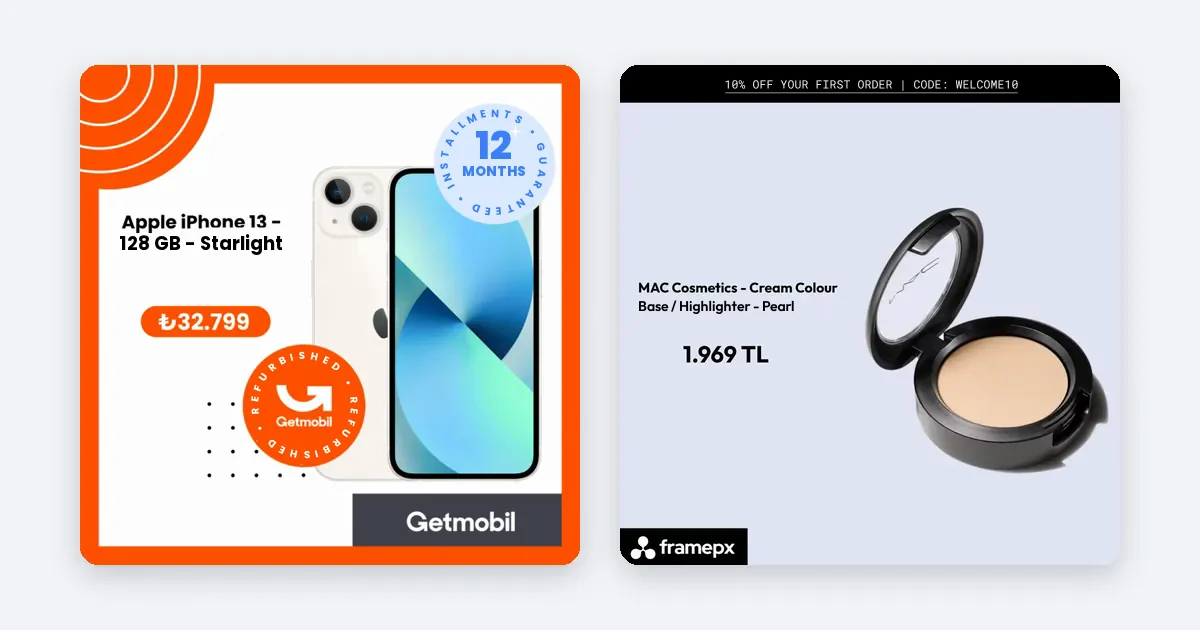
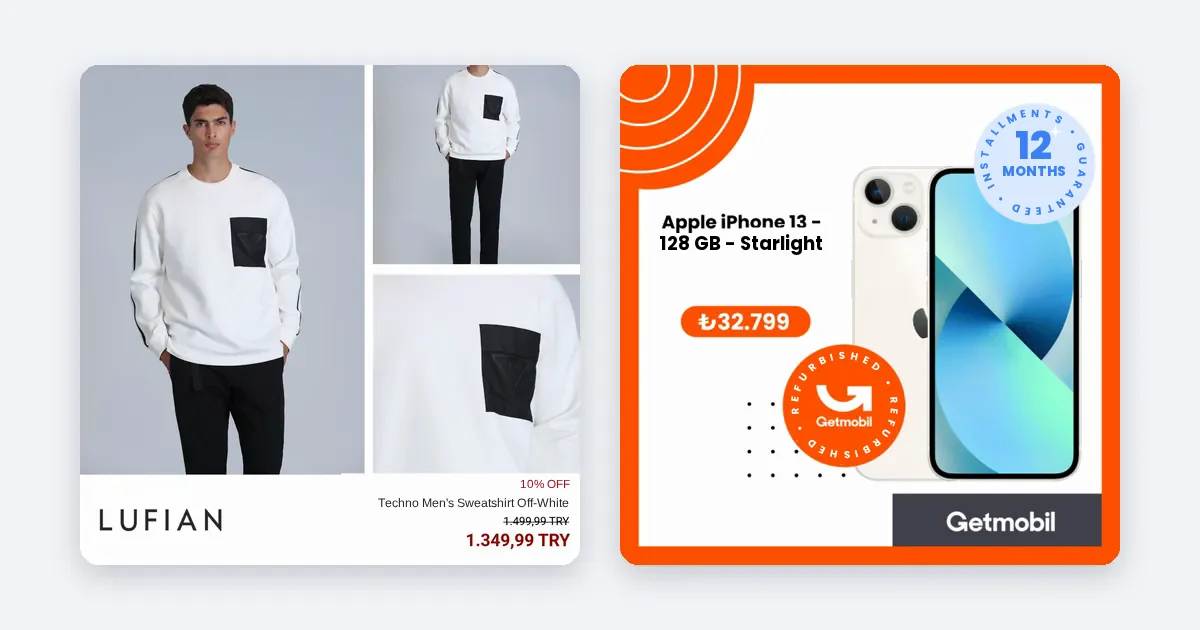
Framepx is an AI system for product ads, offered as AI as a service. It does not replace your segmentation work, which is a business decision about your own products. It turns every product in your feed into your brand's own ad in 1:1, 4:5 and 9:16, so each segment you build has ads ready in the sizes the channels use.
Frequently asked questions
How many custom labels should I use?
Start with one or two. A margin label and a sales-speed label cover most of the value. Add the others only when you have a decision to attach to them.
Do custom labels show up in my ads?
No. Google states that the information in a custom label is not shown to customers. They are for your reporting and bidding only.
How often should I rebuild segments?
Monthly is a good default. Rebuild sooner around a sale, a stock arrival or a season change.
Can I segment without a feed?
Not in a practical way. Feed-based campaigns rely on the feed for product data, so the label belongs there.
To turn every product in your feed into an ad, schedule a demo.
Written by
Framepx team, Editorial team
The Framepx editorial team writes for brands, marketers and agencies about ad platforms, measurement, creative and product feeds.