To fix product feed errors in Meta Commerce Manager, open your product list's diagnostics, fix the must-fix items first, correct the problem in the source file or the store export, and run the feed again. Fixing the item in Meta alone does not last: the next fetch brings the old value back.
Where the errors live
In Commerce Manager, open your product list. Each data source shows its last run and its results. Each item that failed shows what is wrong with it. Meta's own diagnostics reference labels issues as MUST_FIX or WARNING, and the first group is the one to fix first (Meta, diagnostics API).
One note on scope. Meta's diagnostics documentation covers issues that connect your product list with your pixel or app events: no content id, an invalid content id, a missing event, a product list not connected to an event source, and deleted items. Item-level feed rejections are shown in Commerce Manager itself. Read the exact wording on your own screen before you act.
Step by step
- Open the data source. Check the time of the last run and whether it finished. A feed that failed to download shows no items at all. Start there.
- Check the link. Open the feed address in a private browser window. It must load without a password and over HTTPS. A login page, a firewall or a redirect loop stops the fetch.
- Check the format. Meta accepts CSV, TSV, RSS XML, ATOM XML and Google Sheets. A file with the wrong separator, a broken tag or a stray character shows up as many errors at once. Fix the structure before the items.
- Sort the issue list. Work on must-fix items first. Within them, take the issue with the most affected items. One fix at the source often clears hundreds of rows.
- Fix missing fields. Meta's product data specification in Commerce Manager lists the required fields. Typically they are an id, a title, a description, availability, price, a page link and an image link, plus brand details. Add the missing values in the store, not in Meta.
- Fix price and currency. The format is a number and a currency code, for example
19.99 USD. A thousands separator, a missing code or a text value is rejected. - Fix images. Each link must open a real image file. Broken or blocked image links fail, and small or cluttered images perform badly.
- Fix ids. An id must be unique and must not change. Meta says a product can exist in only one feed at a time, so remove any duplicate source (Meta, product list overview).
- Run the feed again. Run the data source again from Commerce Manager or wait for the next schedule. Then reopen diagnostics and check that the number dropped.
- Record what you fixed. A short list of the rule that broke each time saves a day next month.
The mistakes that repeat
- Fixing in Meta, not at the source. An edit in the product list may be overwritten by the next fetch.
- A replace schedule with a broken file. Meta's replace schedule refreshes the entire feed, and products missing from the file are deleted. Test a new export on a small product set before it goes on a replace schedule.
- One id for several variants. Each size or color is its own row.
- Mixed currencies. Keep one currency per product list.
When the errors are about events, not the feed
If diagnostics speak about a content id or a missing event, the feed may be fine. The pixel sends an id that does not match the id in the product list. Meta's reference says to correct content ids that contain extra numbers or symbols, add unique content ids where there are none, and check the pixel with its Data Advisor. The ids sent by the pixel and the ids in the feed must be the same string for the same product.
How Framepx fits in
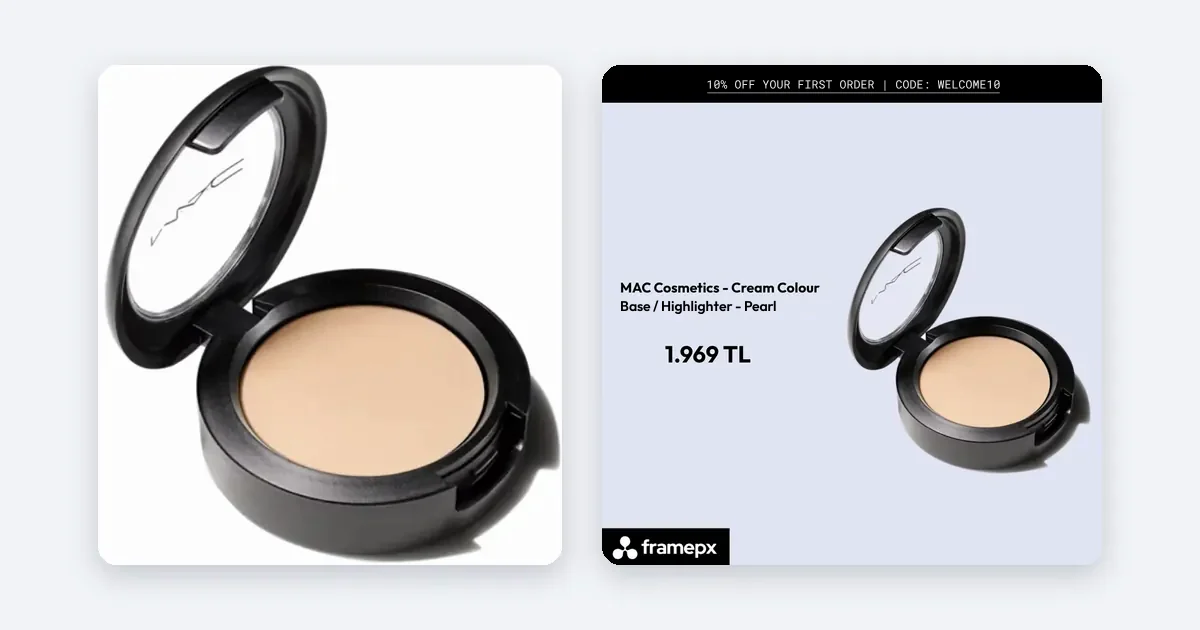
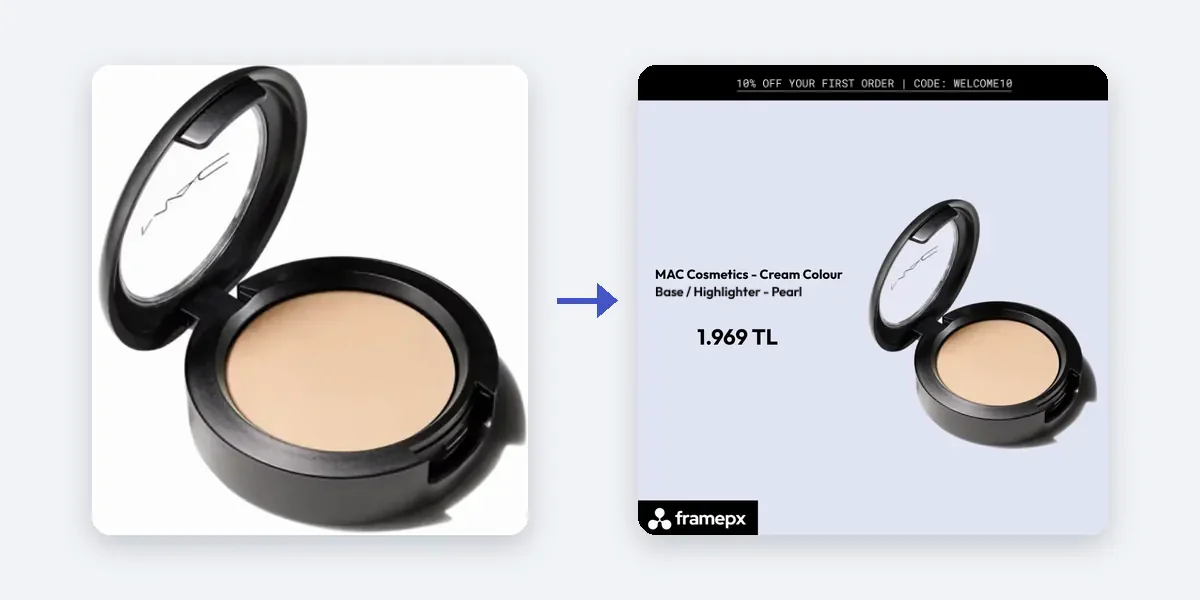
Framepx is an AI system for product ads, offered as AI as a service. Its AI engine reads the products in your feed and turns each into your brand's own ad in 1:1, 4:5 and 9:16, keeping each ad in step with the product's price and stock. So a feed with errors shows its errors in the ads. Fix the feed first, then the ads follow.
The channels read the ads through a feed link today. You can start free for up to 30 days on the steps the panel asks. For plans, see Pricing.
Frequently asked questions
Why do I see errors after the feed was fine yesterday?
Something changed in the store export: a new field format, a product added without an image, or a changed id. Compare today's file with yesterday's.
Do warnings stop my ads?
Not always. Must-fix items are the ones that affect performance most. Warnings matter less, but fix them when the must-fix list is empty.
How long does a fix take to show?
It shows after the next successful fetch of the feed. Run the data source manually if you do not want to wait.
Should I delete the product list and start over?
Rarely. Fix the source and keep the product list.
Ads built from a clean feed: Schedule a demo.
Written by
Framepx team, Editorial team
The Framepx editorial team writes for brands, marketers and agencies about ad platforms, measurement, creative and product feeds.