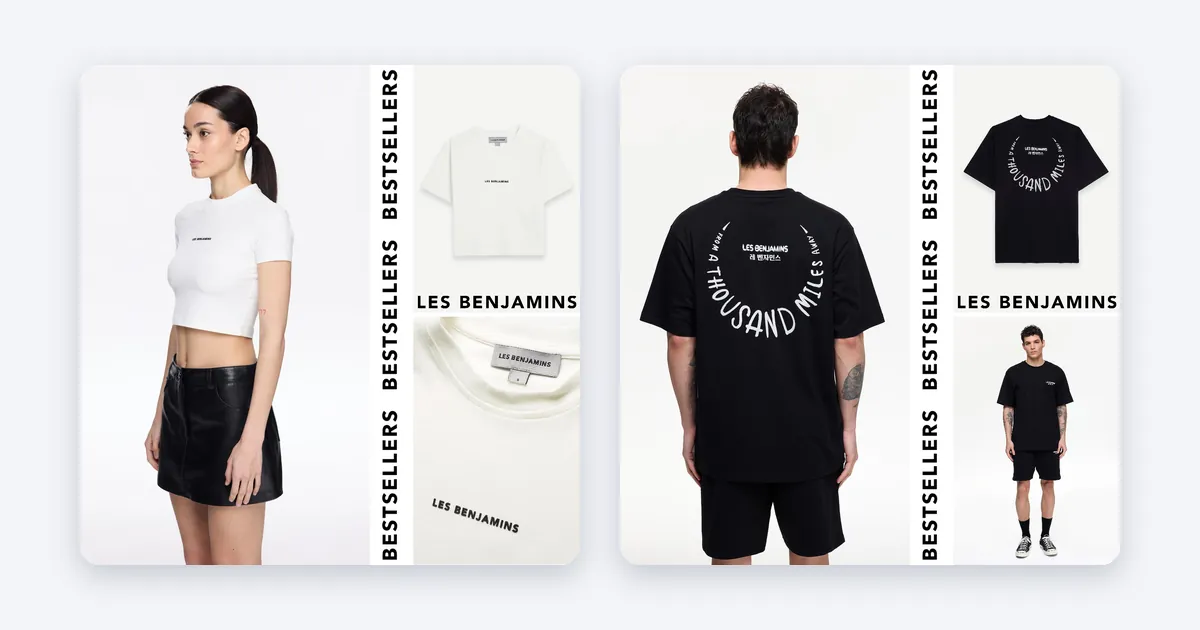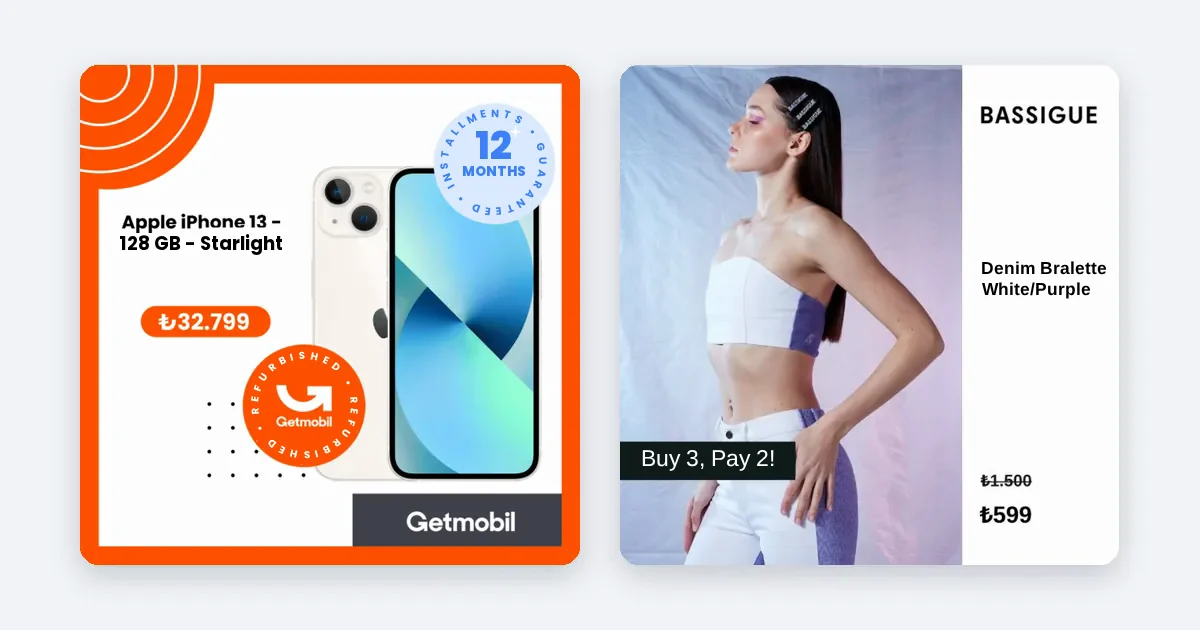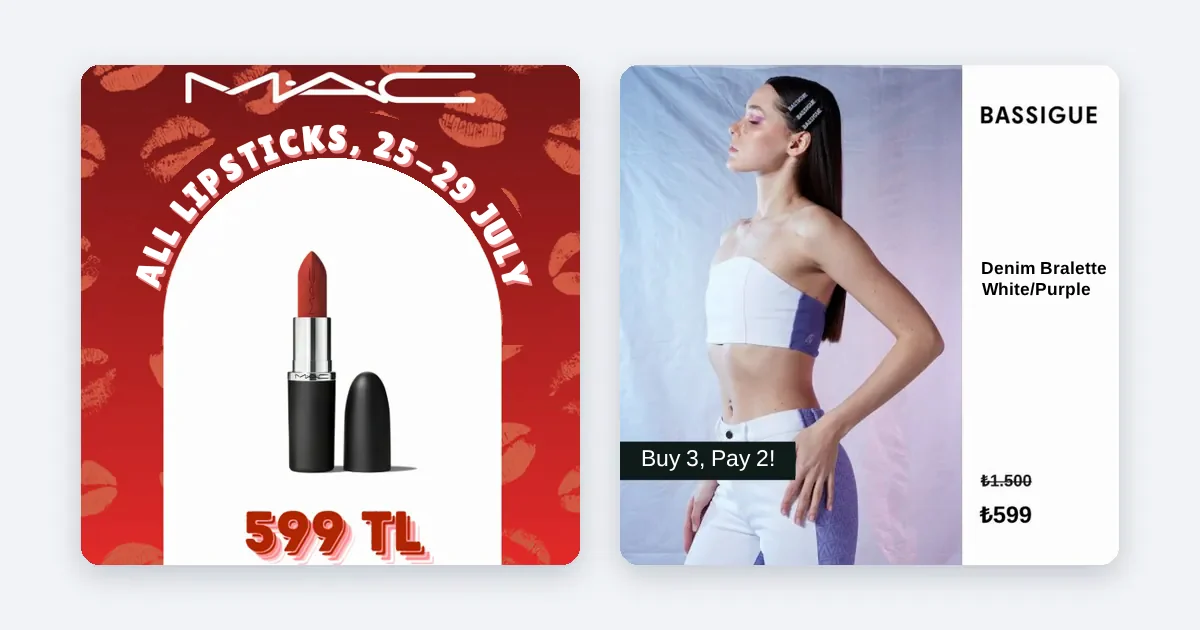
To show the price and discount badge on an ad image automatically, do not type them into the image. Connect them to the price data in your product feed, so the ad updates itself when a price or a campaign changes.
Why show the price on the image?
Price is the fact that makes people decide fastest when shopping. When it is visible on the image, fewer wrong people click and more right people do. A discount badge catches the eye and adds urgency. Together they help both CTR and purchases.
But typing a price by hand creates a risk. The campaign ends, stock runs out, the price is updated, and the image stays old. The customer cannot find the price from the ad on your site, and trust is lost.
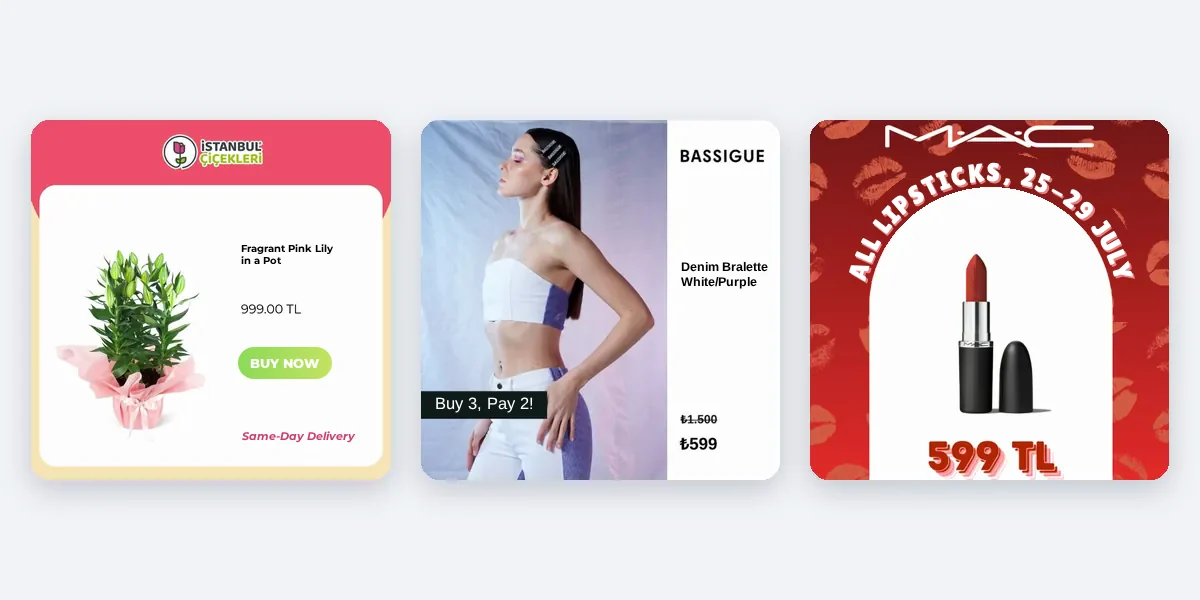
Automatic price and badge, step by step
- Make sure the feed has two price fields. The regular price and the sale price should be separate. In Commerce Manager, check in feed diagnostics that these fields are filled.
- Connect the price field to the image layout. The price should sit in a fixed place at a readable size.
- Set the discount rule. If the sale price is lower than the regular price, show the badge. If not, do not.
- Keep the badge text plain. A percentage or the word "Sale" is enough. Too many words crowd the image.
- Test the placement in three sizes. In 1:1, 4:5 and 9:16, the price and badge must show without being cut. In Stories and Reels, interface elements cover the bottom edge, so put key information a little higher.
- Check the currency and format. The thousands separator, decimals and currency symbol should match your site.
- Verify the update flow. Change the price on one product and see that the ad changes.
Points to watch
- The price on the image must equal the price on the product page. If it differs, Meta may reject the ad and the customer loses trust.
- The ad for an out-of-stock product should stop.
- The badge should not cover the product itself.
- Showing a badge on every product weakens its effect. Show it only on real discounts.
How Framepx does this
Framepx is an AI system for product ads, offered as a service. Its AI engine turns every product in your feed into your own branded ad, in 1:1, 4:5 and 9:16. Each ad stays in step with the product's price and stock, so when either changes the ad changes. A decision engine chooses which product is shown where, looking at price, stock, channel results and GA4. Channels read the ads through a feed link today.
Real results
- Emsan (kitchenware and home): ROAS 6.4x and CPA 79% lower than standard product ads.
- Rakle (glassware and lifestyle): ROAS rose 46% and monthly revenue grew 5.4x compared with standard product ads.
- Exxe Selection (premium multi-brand fashion): ROAS rose 138% and cost per session fell 44% compared with standard product ads.
These are comparisons inside each brand's own account. The result does not come from the price badge alone, but from the image as a whole. Sector, season and budget matter too.
Practical tips for badge design
Whether a badge works depends on how it looks. A few simple rules do the job.
- Color contrast. The badge should stand apart from the product and the background. A badge nobody can read is ignored.
- Position. Do not put the badge over the product. Prefer a corner or an edge margin.
- Size. It should be easy to read on a phone screen. Choose a size that is large but does not overpower the image.
- Consistency. Use the same badge style in all ads. When customers recognize the badge, they grasp its meaning fast.
- Honesty. Do not show a discount badge when there is no real discount. It is risky for policy and for trust.
FAQ
Does Meta let me show the price on the image?
Showing a price is generally fine. For discount and price wording in images, check Meta's current ad policies. The price on the image must be the same as on your site.
Do I have to calculate the discount percentage by hand?
No. If the regular and sale prices are in the feed, the percentage is calculated automatically.
How soon does the ad update after a price change?
The ad follows the change in the feed. How often the channel reads the feed also affects the time.
Can I try Framepx for free?
You can start free for up to 30 days by completing the steps the panel asks for. See Pricing for plans.
To show price and badge automatically, Schedule a demo.
Written by
Framepx team, Editorial team
The Framepx editorial team writes for brands, marketers and agencies about ad platforms, measurement, creative and product feeds.