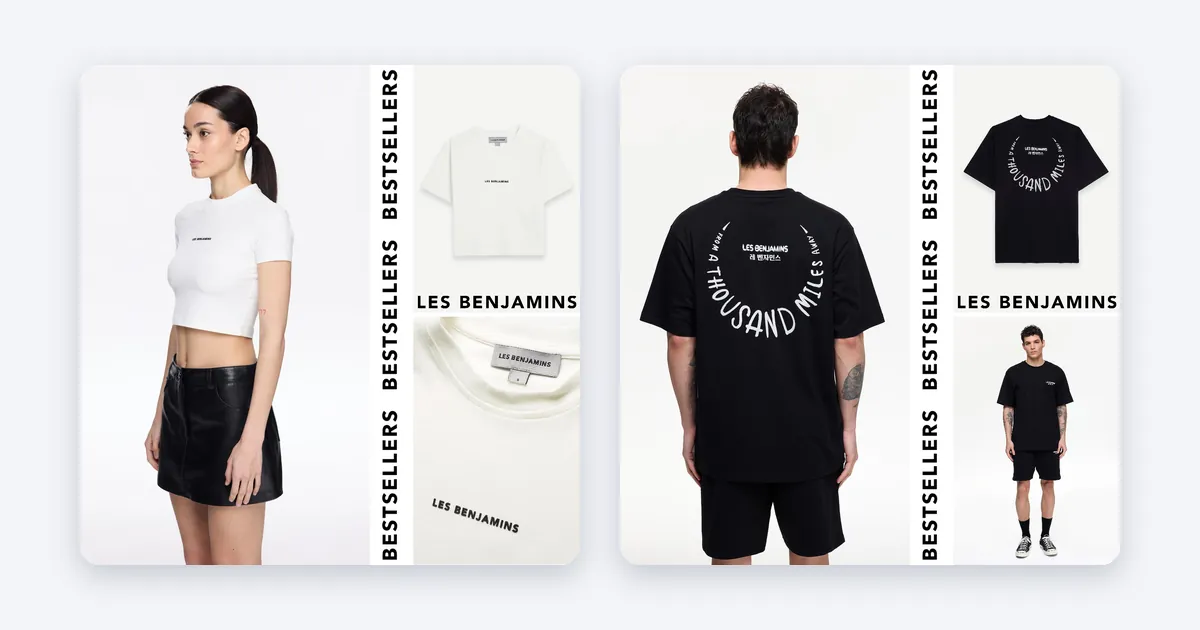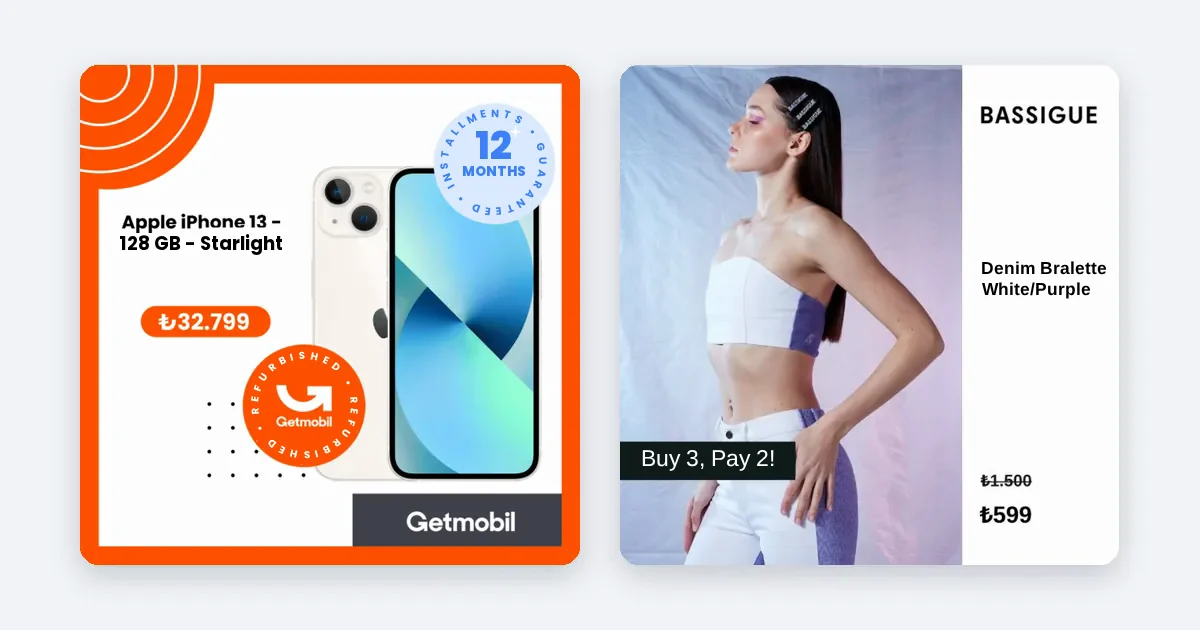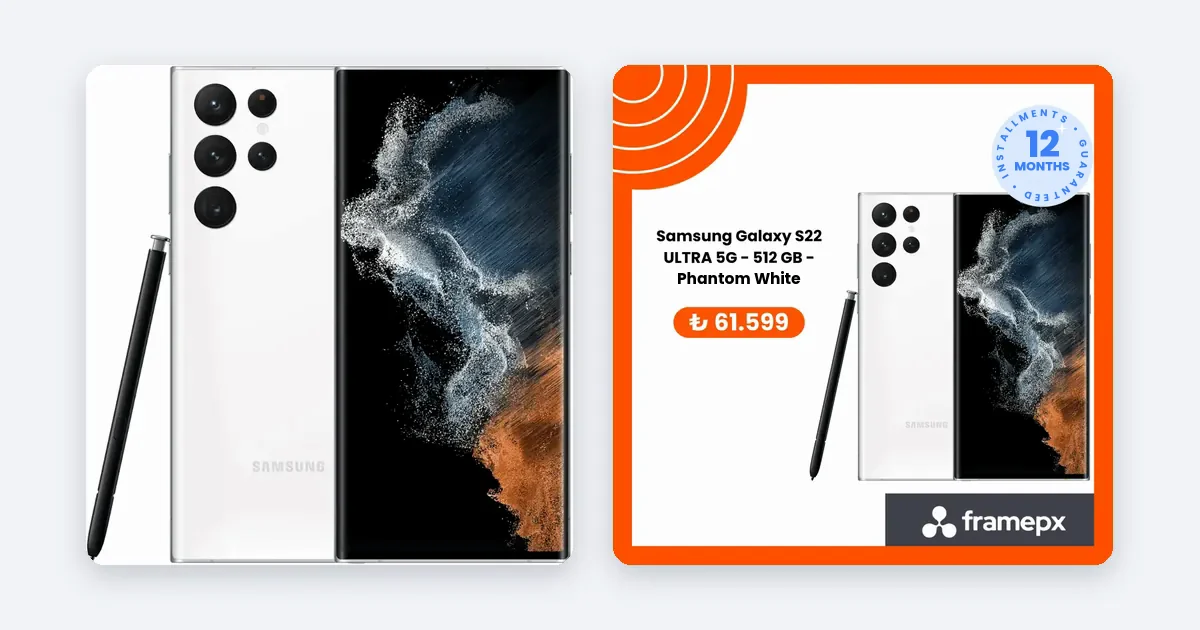
Prepare every product image in three ratios: 1:1 (square), 4:5 (portrait) and 9:16 (full screen vertical). Use 4:5 or 1:1 for Feed and 9:16 for Stories and Reels, and keep the product and any text away from the edges.
Why one image is not enough
A Meta ad can run in several places: Facebook and Instagram Feed, Stories, Reels and more. Each place shows the image at a different shape. If you upload only one square photo, Meta may crop it or add bars when it runs in a tall placement. The product can end up cut off, or the price can disappear under the interface.
Meta publishes its own guidance on this. Read Best practices for aspect ratios and About text overlays and the safe zone for ads in Stories and Reels in the Meta Business Help Center. Meta changes its specs from time to time, so treat those two pages as the final word and this article as the working method.
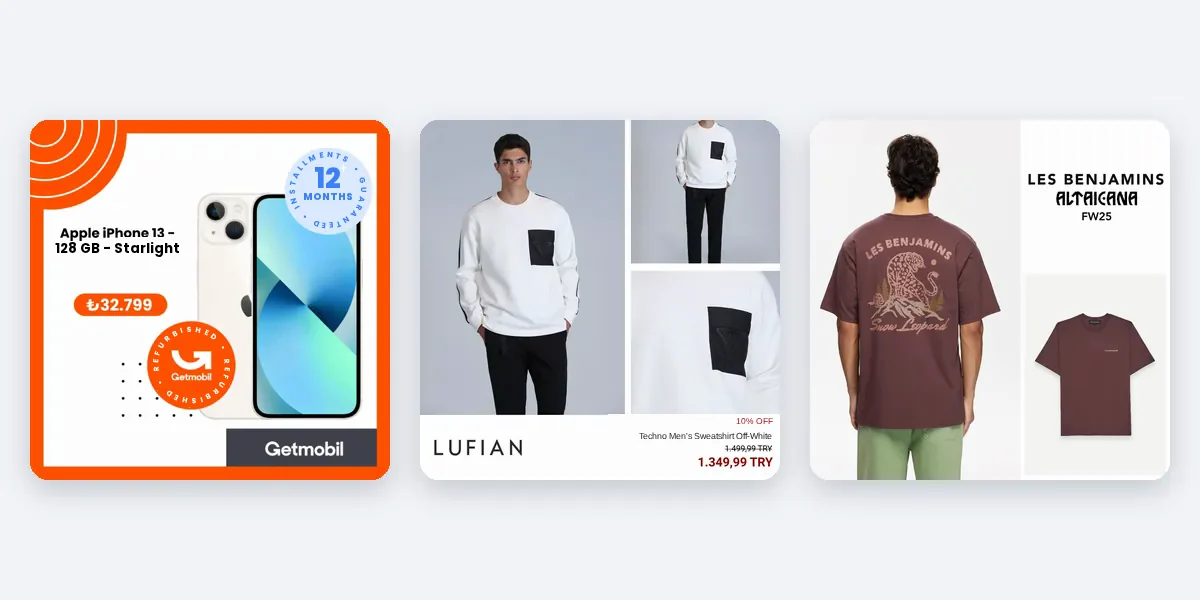
The three ratios and where each one fits
- 1:1 (square). The safe default. It works in Feed and in carousels, and it is easy to design because nothing is cropped on the sides. Use it when you want one image that works almost everywhere.
- 4:5 (portrait). It takes more vertical space in the Feed, so the ad stands out more as people scroll on a phone. For most product ads that run in Feed, this is the ratio to design first.
- 9:16 (full screen vertical). Made for Stories and Reels. The image fills the phone screen. It also needs the most care, because buttons, the account name and the caption sit on top of it.
If you also want a wide image, 1.91:1 exists, but for product ads on phones the three ratios above cover most of what you will run.
Pixel size and file basics
Meta's own pages list the minimum and recommended pixel sizes, and they can change, so check them before you export. A few habits that hold regardless of the exact number:
- Export at a high resolution, not at the smallest size allowed. A sharp image survives Meta's compression better.
- Keep the same product framing across the three versions. The shopper should see the same product, not three different photos.
- Use the actual ratio, not a near one. A ratio that is slightly off can trigger an automatic crop.
- Keep file formats simple: JPG or PNG for images.
How to prepare each product, step by step
- Start from your best product photo. Check that it is sharp, evenly lit and large enough to be cropped without losing detail.
- Mark the product's center. Decide where the product sits so you can keep it in the middle of every version.
- Create the 1:1 version. Place the product in the center with some space around it.
- Create the 4:5 version. Add space above and below. Do not stretch the square image. Extend the background or reposition the product.
- Create the 9:16 version. Keep the product in the middle of the frame. Leave the top and the bottom strips free of text and logos, because Meta places the account name, caption and buttons there. The safe zone page linked above shows the exact area.
- Put the price and offer inside the safe area. A price tag on the very edge may be covered or cut.
- Preview every placement in Meta Ads Manager. The ad creation screen lets you preview each placement. Look at each one on a phone-sized view before you publish.
- Check text size. If you cannot read it in the preview at phone size, it is too small.
What changes when you have hundreds of products
Doing these steps by hand for ten products is fine. For a few hundred products, it becomes the slowest part of running product ads, and the first to be skipped. Then Meta crops your single image and you lose control over what the shopper sees.
The practical answer is to treat the three ratios as part of your process, not as a one-off task: one template per ratio, applied to every product from your product feed.
How Framepx handles the sizes
Framepx is an AI system for product ads, offered as AI as a service. Its AI engine turns each product in your feed into your brand's own ad, and renders it in 1:1, 4:5 and 9:16. You do not resize anything yourself. The channels read the ads through a feed link today.
See Pricing for plans.
Common mistakes
- Uploading one square image for every placement. It leaves Stories and Reels with a poor crop.
- Stretching an image to fit. The product looks distorted and the ad loses trust.
- Putting text at the very top or bottom of a 9:16 image. It is the first thing the interface covers.
- Different product framing in each ratio. Keep the product recognizable in all three.
- Skipping the preview. The preview shows the problem in seconds.
Frequently asked questions
Which single ratio should I use if I can only make one?
Use 4:5 if your ads run mostly in Feed, and 1:1 if you want the safest all-round choice. If you run in Stories or Reels at all, you need a 9:16 version as well.
Does Meta crop my image automatically?
It can. If the image does not match a placement's ratio, Meta may crop it or fit it in a different way. Check the preview in Meta Ads Manager so you see the result before you pay for impressions.
Do I need three separate ads?
Not necessarily. In Meta Ads Manager you can upload more than one version of the creative and assign each to the placements it fits. Check the placement options in the ad creation screen.
Do the same sizes work for video?
The same three ratios are a sound starting point for video as well. Check Meta's pages above for video-specific limits.
Schedule a demo and see each of your products in 1:1, 4:5 and 9:16.
Written by
Framepx team, Editorial team
The Framepx editorial team writes for brands, marketers and agencies about ad platforms, measurement, creative and product feeds.